
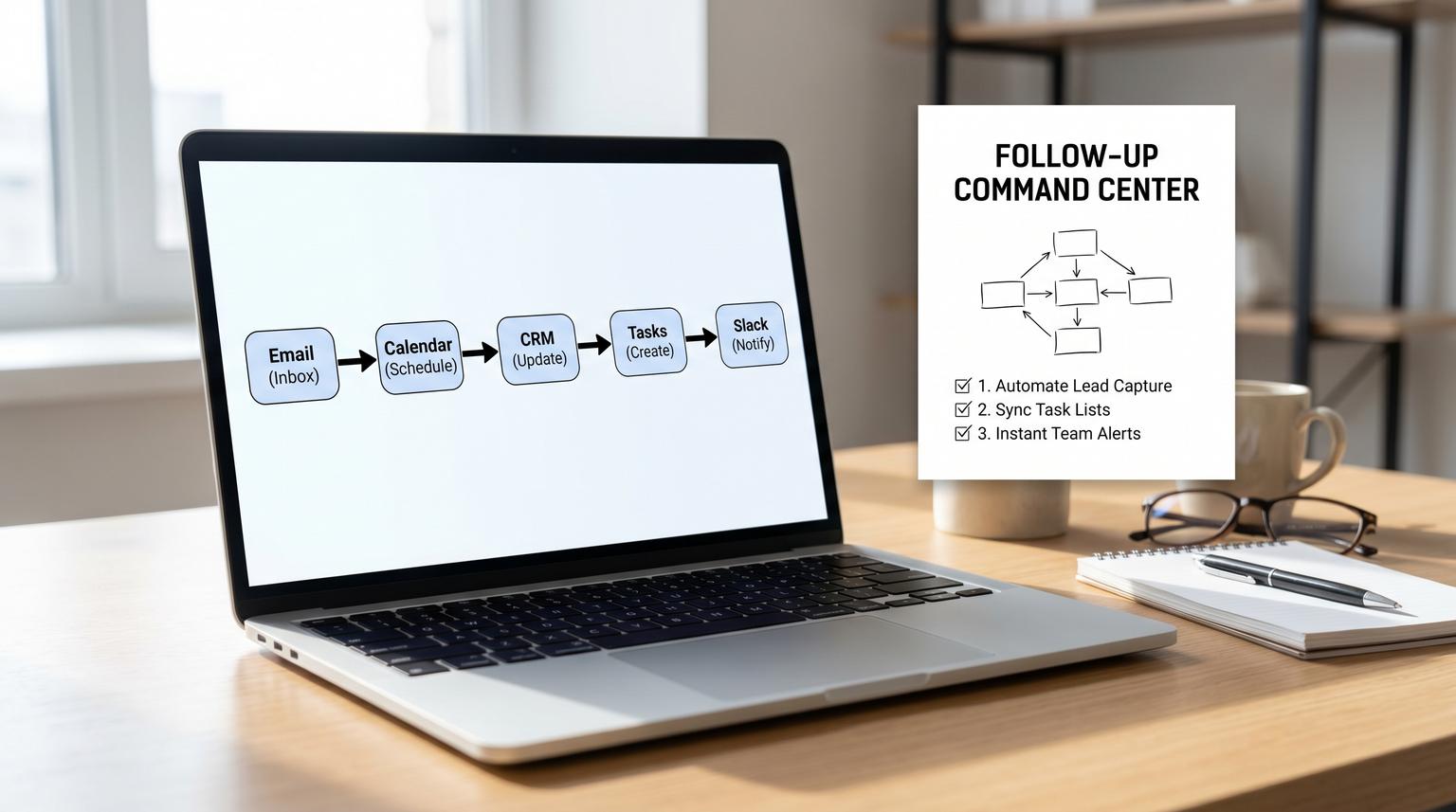
Follow-ups fail at the boundary between inboxes, calendars, task tools, chat and the CRM. A rep gets a lead email, books a meeting or sends a proposal, then the context stays trapped in Gmail or Google Calendar while tasks get created inconsistently, due dates drift and CRM notes become untrustworthy.
This post shows how to build a reliable Follow-Up Command Center using Zapier automation for productivity. It converts specific triggers (inbound lead email, booked meeting, proposal sent or deal stage change) into standardized tasks with owners, due dates, dedupe protection and timed escalation reminders that also write clean activity back to your CRM.
Quick summary:
- Centralize follow-up intake from email, calendar and CRM stage changes then normalize it into one task standard.
- Create tasks with deterministic owners and due dates then log the same event back to the CRM for auditability.
- Prevent duplicates with Storage or a dedupe table plus queueing to reduce race conditions.
- Escalate automatically if the task is not completed by a deadline using Delay steps and status checks.
Quick start
- Pick 2 to 3 triggers that truly represent a follow-up commitment (new inbound lead email, meeting booked, proposal sent).
- Define one task schema: subject format, required fields, due date rules, owner rules and what gets written to the CRM.
- Add a dedupe guardrail right after the trigger (Storage key or Find/Create record) and optionally serialize runs with Delay After Queue.
- Create the task in Asana, Trello or ClickUp then post context to Slack or Teams and write a structured note or task back to the CRM.
- Chain delays to send reminders and escalate if the task is still open.
A Follow-Up Command Center is a set of Zaps that turns email, meetings and CRM changes into standardized follow-up tasks with an owner, a due date and automatic reminders. The core is reliability: you dedupe triggers, enforce field mapping, create one canonical task and write the evidence back to the CRM so your pipeline does not depend on memory or copy-paste.
The Follow-Up Command Center architecture
Most teams do not need dozens of Zaps. They need a small system with clear boundaries and a single source of truth. Zapier frames CRM automation as keeping the CRM synchronized with external activity so nothing gets siloed in calendars or inboxes. Treat your CRM as the source of truth for follow-up evidence then let task tools and chat be execution layers. For broader context on CRM-first automation you can reference this CRM automation overview.
Four components you will build
- Intake layer: email triggers, calendar triggers and CRM stage changes.
- Normalize layer: create a single event payload (lead, meeting, proposal) with a consistent set of fields.
- Execution layer: create tasks, post to Slack or Teams and optionally create a CRM task.
- Memory and guardrails: dedupe keys, queueing and escalation timing. For a deeper, production-ready approach, see our pillar guide on building production-ready Zapier automation workflows across teams.
Minimum data contract (use this across every trigger)
Define these fields once and map every trigger into them:
- event_type (lead_email, meeting_booked, proposal_sent, stage_change)
- event_id (unique id from the source system)
- crm_record_id (contact and deal id if you have them)
- owner_email or owner_id
- due_at (ISO timestamp)
- task_subject and task_body
- priority (Low, Normal, High)
- source_url (email thread link, calendar event link, CRM record link)
| Trigger | Owner rule | Due date rule | What to log to CRM |
|---|---|---|---|
| New inbound lead email | Round robin or assigned SDR based on inbox or territory | Next business day 10:00 local | "Inbound lead received" note with email subject, sender and task id |
| Meeting booked | Meeting host | 1 hour after meeting end time | "Meeting booked" note plus attendees and follow-up due |
| Proposal sent | Deal owner | 2 business days after send time | "Proposal sent" note plus amount and next follow-up date |
| Deal moved to "Negotiation" | Deal owner | Same day 16:00 local | Stage change entry plus required next step task |
Implementation prerequisites before you touch Zapier
Follow-ups get messy when the team cannot agree on standards. Spend 30 minutes locking these decisions:
- System of record: choose the CRM record where follow-up evidence must appear (HubSpot contact or deal is common).
- Task destination: pick one task tool per team. Creating tasks in three systems is a duplication trap.
- Owner mapping: define how you map email address to CRM owner and task tool assignee.
- Due date rules: write down the rules in plain English then convert them into Delay Until timestamps.
- Escalation policy: when do you remind the owner and when do you notify a manager channel.
A real ops insight: when follow-ups slip, it is usually not because the task was never created. It is because the due date was vague, the owner was ambiguous or the task lived outside the place the person works all day. Your build should aggressively remove ambiguity.
Step-by-step build in Zapier
This is a repeatable build pattern. You will create one Zap per intake source (email, calendar, CRM stage) but keep the middle steps identical. That is how you get reliability instead of a fragile set of one-off automations.

Step 1: Create the trigger Zaps (intake)
- Inbound lead email: Gmail or Outlook trigger such as "New Email Matching Search" using a label or a search like
to:[email protected] is:unread. - Meeting booked: Google Calendar or Outlook Calendar trigger "Event Created" or "New Event" for a specific calendar.
- Proposal sent: trigger from your CRM stage change, a proposal tool event or a "sent" label in email if you keep it simple.
Tip: keep triggers narrow. If you trigger on every email and then filter later you will fight volume and duplicates forever.
Step 2: Normalize fields (formatter and mapping)
Add a Formatter step or built-in field mapping to produce:
- event_type as a constant per Zap
- event_id from the source (message id, calendar event id or CRM activity id)
- due_at as a timestamp based on your rules
- task_subject as a consistent format, for example:
[Lead] Reply to {{name}} from {{company}} - task_body with a short template that includes the source link and the next step
Step 3: Serialize runs when collisions are likely (optional but recommended)
If you commonly see multiple triggers close together (for example two calendar updates or email threading) add Delay After Queue with a shared queue name like followup-command-center. Zapier documents this delay mode as a way to serialize runs to avoid conflicts and reduce duplicates. Use it when your task tool or CRM gets inconsistent updates under load.
Step 4: Add duplicate prevention (mandatory)
You have two solid options. Pick one and use it everywhere.
Option A: Storage by Zapier
- Add Storage by Zapier and use Get Value.
- Key design: keep it under 32 characters. A practical pattern is to store a short hash or compact id, for example
FUP|{{event_type}}|{{short_event_id}}. If your ids are long, hash them in a Code step. - If the key exists, stop the Zap with a Filter.
- If the key does not exist, continue and later Set Value to mark it processed. Store the created task id as the value so you can reference it later.
Storage is lightweight "memory" but it has limits like key length and retention. Plan it for dedupe and short state not long-term history. Zapier outlines Storage setup and limitations in their Storage documentation. If you are deciding between CRM vs Zapier state vs a table for long-term reliability, use this source of truth decision matrix for Zapier automation.
Option B: Find or Create in a dedupe table
- Create a dedicated Airtable base or Google Sheet that only stores processed event ids.
- Use Find or Create Record/Row keyed by
event_type + event_id. - Filter: continue only if "Zap Data Was Found" is false.
Do not use the same table as both the trigger source and the dedupe store. That common mistake makes every run look like a duplicate and silently blocks real work. The Zapier Community has a solid walkthrough of this pattern in their dedupe article.
Step 5: Create the task in your work system
Create one task using your standard fields:
- Asana: create a task, set assignee and due date and add notes.
- ClickUp: create a task, assign it, set due date and set priority.
- Trello: create a card, set due date, add members and add a checklist.
Put the CRM record link and the source link at the top of the description so the context travels with the task.
Step 6: Post context to Slack or Teams
Send a message to the right channel or to the owner directly. Keep it structured:
- Who: owner
- What: task_subject
- When: due_at
- Where: CRM link
- Why: short trigger context
Step 7: Write clean activity back to the CRM
Do this immediately after task creation so the CRM remains trustworthy. You can either:
- Create a CRM note or activity entry with the task id, due date and owner.
- Create a CRM task and associate it to the right records for full timeline visibility.
If you are using HubSpot and want tasks to show as Activities you can create and associate tasks via the Tasks API. The API supports explicit fields like subject, body, status, priority and owner. Here is a minimal payload pattern adapted from HubSpot task properties:
{
"properties": {
"hs_timestamp": "2026-05-13T10:00:00Z",
"hs_task_subject": "Follow up after proposal",
"hs_task_body": "Context: Proposal sent\nSource: https://...\nTask in ClickUp: https://...",
"hubspot_owner_id": "123456",
"hs_task_priority": "HIGH",
"hs_task_status": "NOT_STARTED"
}
}
This extra write-back step is what prevents the long-term productivity decay where nobody trusts the CRM timeline and everyone re-asks the same questions.
Guardrails that keep the system deterministic
Reliability is where most follow-up automation projects win or lose. Build these guardrails up front.

Use idempotency, not hope
Make the Zap safe to run twice. Your dedupe step blocks most duplicates but you should still design each action so it will not create a mess if replayed. A simple rule: store the external task id in Storage or your dedupe table as soon as it is created. If the Zap runs again you can detect it and skip create then only update the existing task or CRM note.
Choose a single ownership source
Decide where the owner comes from. If your CRM is the system of record, resolve the owner in the CRM and pass that owner to task tools and chat. If you try to assign based on calendar host for some events and based on inbox rules for others you will get edge cases where the wrong person is pinged and the team stops trusting automation.
Handle Delay constraints explicitly
Zapier Delay steps are perfect for follow-up reminders but they have production constraints: the Zap must remain on for scheduled delays to execute, editing a Zap while items are delayed can disrupt continuation and delays max out at 30 days. Zapier documents these behaviors in their Delay help article. If you need 60 or 90 day sequences use a separate scheduler approach such as a daily "sweeper" Zap that checks CRM fields for overdue follow-ups.
Tradeoff decision rule for Storage vs a table
Storage is faster to set up and keeps everything inside Zapier but it has tighter limits on keys and retention. A table takes more maintenance but can provide a longer audit trail and easier debugging. If your sales volume is high or you need compliance-grade traceability, use a table. If you mainly need short-horizon dedupe and lightweight state, Storage is usually enough.
Escalation timeline that actually prevents dropped leads
Escalation should be predictable and tied to task status, not just time passing. A simple three-stage timeline works well:
- T+0: Create task, notify owner, log to CRM.
- T+1 business day: If task still open, remind owner with the same context.
- T+3 business days: If task still open, notify manager channel or sales ops and add an escalation note to the CRM.
How to implement it in Zapier
- After task creation, add Delay Until and compute the reminder time (for example next business day at 09:00 in the owner timezone).
- Then add a step to Get task status from your task tool.
- Add a Filter: continue only if status is not Completed.
- Send Slack or Teams reminder to owner and optionally update the CRM with "Reminder sent".
- Add another Delay For (for example 48 hours) then repeat the status check.
- If still not completed, send an escalation message to a manager channel and write an escalation note to the CRM.
If you have multiple Zaps creating tasks for the same lead, share a queue name for Delay After Queue so escalations do not fire in parallel and create chat spam. Queueing reduces collisions but it is not a replacement for dedupe.
Rollout, monitoring and rollback
Automations with delays are operational systems. Treat them like one.
Suggested roles
- Ops owner: owns the due date rules, escalation policy and CRM field definitions.
- Automation owner: maintains the Zaps, Storage keys or dedupe table and monitors task creation errors.
- Sales or CS manager: receives escalations and enforces behavior when reminders fire.
Monitoring checklist
- Check Zap runs daily for errors and for unusually high dedupe blocks. For an expanded checklist and audit approach, see our reliability audit used by Zapier automation experts.
- Spot-check 10 records per week: task exists, owner correct, due date correct and CRM entry is present.
- Review escalation volume weekly. If escalations are frequent, the issue is usually ownership ambiguity or unrealistic due dates not lack of automation.
Rollback plan that avoids losing scheduled reminders
If you must change a Zap that has Delay steps, clone it, test with a small subset, then switch traffic by disabling the old trigger and enabling the new one during a maintenance window. Avoid editing a Zap mid-delay. If you have to turn a Zap off, assume delayed actions will not fire and communicate it to the team.
If you want ThinkBot Agency to design this with your exact CRM fields, task tool and escalation rules, book a working session here: book a consultation.
When this approach is not the best fit
This setup is ideal when your follow-up signals are clear and your team uses a consistent CRM and task tool. It is not the best fit when:
- You need multi-month follow-up cadences beyond the 30-day Delay limit and you cannot implement a daily sweeper process.
- Your follow-up logic requires complex branching across many products with strict transactional guarantees, where a workflow engine or custom integration may be more appropriate.
- Your CRM data model is not stable yet. Automating on top of unstable fields will lock in bad process.
In those scenarios we often implement a small integration layer with stronger state management or move the automation into a workflow tool like n8n where long-running orchestration is easier to control. Zapier can still play a role at the edges.
FAQ
Can I build this if we use Salesforce, Pipedrive or another CRM?
Yes. The pattern stays the same: intake trigger, normalize fields, dedupe, create task, notify in chat then write back to the CRM. The only change is which CRM actions you use and which record ids you treat as your system of record.
How do I prevent two tasks from being created for the same meeting or email?
Use a dedupe step immediately after the trigger. Store a key based on event_type and the source event_id using Storage by Zapier or a dedicated dedupe table with Find or Create. Optionally add Delay After Queue to reduce race conditions when multiple triggers fire close together.
What is the best way to set due dates like next business day at 10:00?
Compute a specific timestamp and use Delay Until for reminders. If you need business-day logic, you can implement it with a small Code step or by referencing a work calendar rule set, then pass the resulting ISO datetime into your task tool due date field.
How do escalations work if someone completes the task early?
After each Delay step, add a task status lookup and a Filter that only continues when the task is still open. If the task is completed, the Zap run stops and no reminder or escalation is sent. This keeps notifications tied to real work status.
Will the reminders still send if the Zap is turned off?
No. Delayed actions only execute while the Zap is on. If the Zap is off when the reminder should fire, it will not run later when you turn it back on. Plan changes carefully and avoid turning off Zaps that have active Delay steps.
